Hey folks, are you ready to add a touch of darkness to your SQL Server Management Studio (SSMS)? Well, I’ve got some exciting news to share with you!
SSMS, so dark
The Extension You’ve Been Waiting For
As of today, thanks to the work of Michael Van Devender, we finally have a free extension that brings the much-awaited dark theme to SSMS. Yes, you read that right – now we can work in the shadows! The extension is called SQL Shades. Just install it and “it’ll darken everything automatically, including what SSMS’ hidden dark mode misses” as Michael said.
Why you should try it?
Why not?
Well, a dark theme isn’t just a matter of style (although I must say it makes your code look even cooler), but it also has some technical advantages. It reduces eye strain, especially if you spend long hours in front of the screen, and it can even help save energy on your machine if you have an OLED monitor.
I know, I know, SSMS has a dark theme, but only the VS Shell components are actually themed! All the other unique controls in SSMS, like the object explorer, the grids, the panels, unfortunately, aren’t.
Additionally, there is a great roadmap for the future with an open source approach to vote for new features.
How to get started
Trying out this extension is a piece of cake. Simply head over to the official website and click on the Download button. After a quick setup, you’re ready to dive into the darkness!
Supported versions
SQL Shades is available for SSMS 18 and 19
You will love SQL Shades
If you really like it, why not consider making a small donation to the author to show your appreciation?
Conclusions
Wrapping things up, if you’re tired of squinting at the bright lights of SSMS, give SQLShades a try. It’s features are ok already, but many others are going to be released in the next months. Be honest, isn’t this an add-in you were waiting for? A big thanks to Michael, because the time to embrace the shadows has come 😉
Years ago, with SQL Server 2016 release, Microsoft came up with a separated brand new version of SQL Server Management Studio. It’s been a happy day for the SQL Server community and database developers.
Shortly afterwards, our company started to migrate every instances from older version of SQL Server to the 2016, using SSMS 17.*. Developers have already jumped into Visual Studio 2017 and everything seemed to work like a charm, until we started deploying integration services via the new SSMS, after we converted them to 2016 TargetServerVersion (which is NOT the Project Version).
The TargetServerVersion is the SSIS version, also for the deploy operations, while the Project Version setting tells to Visual Studio how to open projects based on .dtproj specifications on the XML projects definitions.
Some days ago I’ve realized that after updating to the latest build of SSMS (17.8.1), the .ispac deployment is actually executing the latest build of the Integration Services Deployment wizard (aka ISDeploymentWizard.exe). As a result every deploy of .ispac files, regardless trying double click or deploying directly from the Integration Services Catalog, the SSISDB, failed with one of the most scaring error message ever:
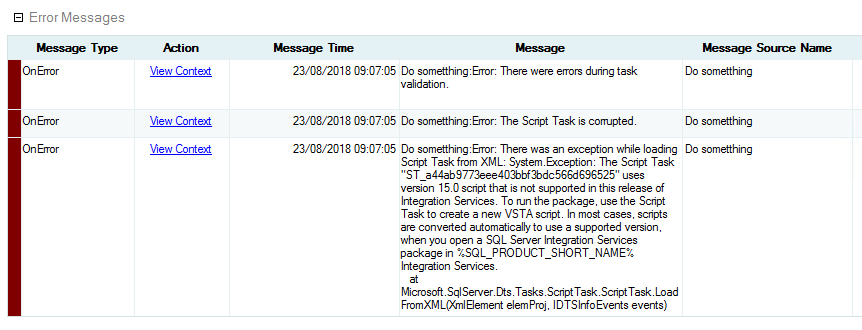
“[…] The Script Task <unique_name> uses version 15.0 script that is not supported in this release of Integration Services […]“
What? Why? I’ve a workstation with SQL Server 2016 and the related Integration Services 13.0:
The computer I’m speaking of has the same build of mine, nobody has installed any other Integration Services versions anywhere. Andy Leonard explained this behavior in this blog post. Unfortunately, in my scenario, I cannot solve the problem.
Let’s try to explain better.
Scenario
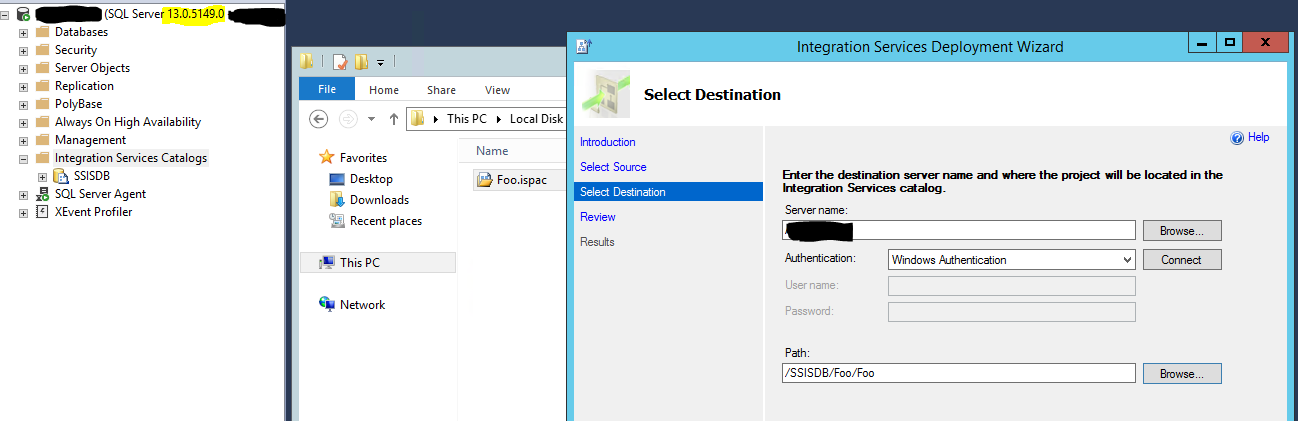
The workstation I’m working on has SQL Server 2016 (build 13.0.5149.0) and Integration Services 13.0 on Windows 10 Pro. I’ve got a simple package with a single script task which does literally anything: As Andy suggested us, I’ve changed the TargetServerVersion to SQL Server 2016, so I’ve got C# 2015 compiler for scripts:
First execution and deploy
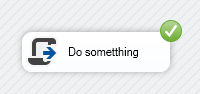
Executing it locally, nothing happens, but it happens in a green way (success):
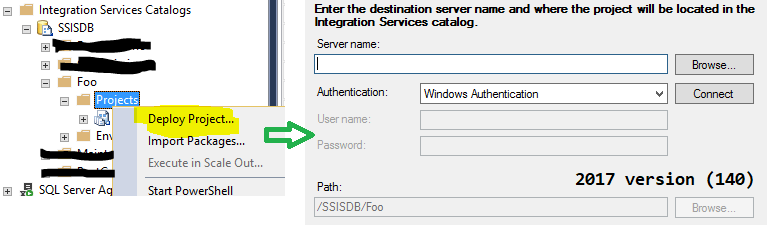
Ok, now we’re going to deploy to the other machine, generating the .ispac file and double clickin on it. It’s important to make sure that you’re double-cliking the .ispac file. Do not right click on the Integration Service Catalog project folders because SSMS will execute the latest build of ISDeploymentWizard.exe by design.
deploy from SSMS 17.8.1
When double clicking, the app selector should use the version related to the TargetServerVersion setting of the .ispac. This works for many of my other computers. But for one of them, here is the screen:
double click on .ispac file
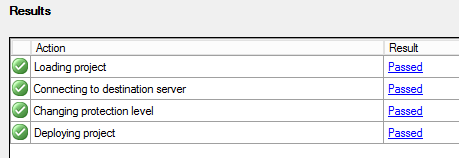
Hey! This is 2017 also when clicking on .ispac file. Let’s try to deploy using the new tool. The deploy succeeded.
And now, let’s try to validate the package execution via SSISDB, right clicking on the project itself and selecting “Validate…”. This is the result of the empty script package validation:
I’ve tried on six different machines, five ran successfully and ONLY ONE returned the above error message. Still stuck in the middle.
What have we changed?
Just the setup of SSMS (17.8.1) updating the 17.7 one. Once again, the same setup on all six machines. Five by six worked, this one is trying to kill me.
For some strange reason, something (I assure you all, not someone) has changed the registry in the .ispac application association, maybe when double clicking for the first time the file in a pending reboot (?). We’re still investigating, since we used to avoid any change in production without permissions and processes. That said, it’s weird. And it was so difficult to get.
Solution
Easy to say, now that we’ve figured out the root consequence. Not so good, but changing the registry on the key HKEY_CLASSES_ROOT\.ispac with the 130 executable (IntegrationServices.ProjectDeploymentFile.130) fixed the unwanted behavior. The key has been set to IntegrationServices.ProjectDeploymentFile.140 right after the update from 17.7 and 17.8.1.
Instead of changing it via regedit, you can try an “open with…” with “use default” checked in order to force the association between .ispac file and the right ISDeploymentWizard.exe version. But this time, in this machine, it didn’t work. This is the reason why I tried the regedit action.
Conclusions
I have to say a big thanks to Andrea Amantini, one of my peer, which is well known for his ability to find out “a needle in a haystack.”. Strange things happened here. A combination of Murphy’s law, a sort of “black” friday and a pending reboot. Hopefully this helps someone, at least.
One of the most common issue you can find when source controlling the database is about the security. How to manage the users and the related permissions?
If you use to apply permission to users and to assign users to the database, this can be a problem, especially when you are in the deployment phase (or else when getting latest versions from the source control). Let’s see these two scenarios:
PASS SQL Saturday Torino, May 23, I’ve proposed two sessions (source control and unit testing on database)
.Net Campus a Roma, May 30, I’ll speak about continuous integration with SQL Server (source control, unit testing, deploy).
There’s a lot of work to do. But I’m thinking now about two or three new sessions. I hope to finish them in the last months of the year, and I hope to meet you in one of these events, at least online.



 As Andy suggested us, I’ve changed the TargetServerVersion to SQL Server 2016, so I’ve got C# 2015 compiler for scripts:





 Alessandro Alpi's Blog